

Buffering is the sound of a household giving up on a film. If you’ve already run the quick checks — restarts, a speed test where the TV sits, other apps tried — and the circle still spins, it’s time to look at the router and the settings around it. Nothing here needs new gear. Most of it needs one evening and your router’s app or settings page open on your phone.
New to the whole problem? Our main buffering fixes guide runs the nine checks in order. This one digs into the router-side and settings-side half of that list.
Before the router: prove where the slowdown lives
Two quick tests save a lot of pointless tweaking:
- Wire test. If you can, plug the TV (or a laptop in the TV’s spot) into the router with an ethernet cable and stream. Smooth on a wire means your internet is fine and your Wi-Fi path is the weak link. Still buffering wired? The fault is upstream — plan or provider — and router settings won’t cure it.
- Time test. Stream at a quiet morning hour. Fine in the morning, broken at 8 pm? Your household (and likely your neighbourhood) is crowding the connection at TV time. That’s a settings and scheduling problem, and a very fixable one.
Check 1: Give the TV the right band
Most routers offer 2.4 GHz and 5 GHz. Neither is “the good one” in all rooms:
- 5 GHz: faster, but fades quickly through walls and floors.
- 2.4 GHz: slower on paper, carries much further and steadier.
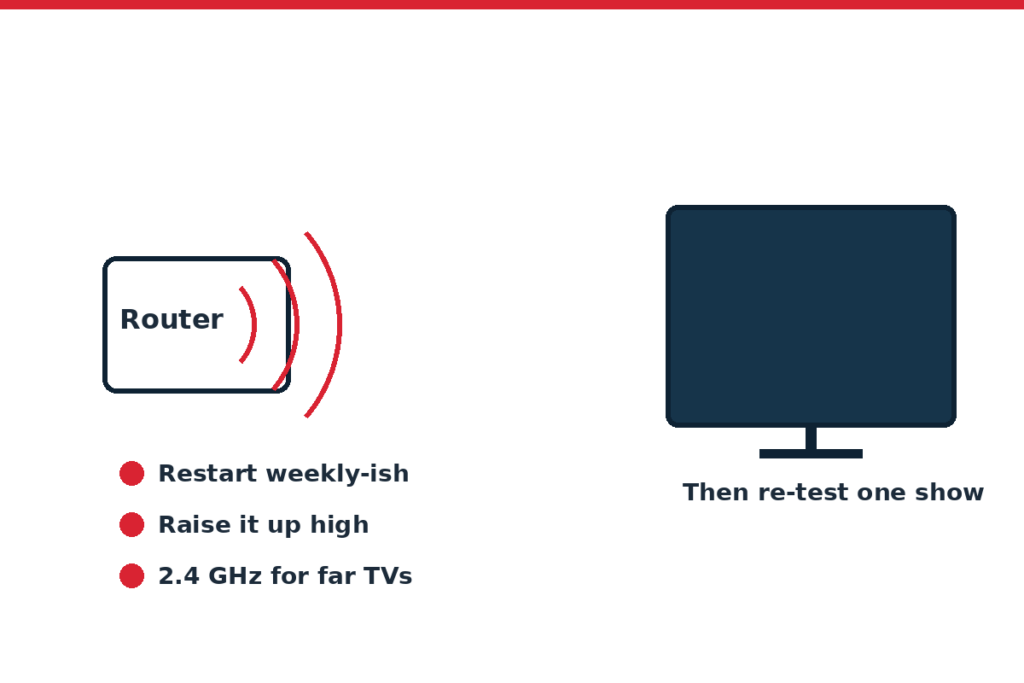
Far TV? Put it on 2.4 GHz for a full evening’s test before changing anything else. Near the router, 5 GHz is the right home. Some routers merge both under one name and steer devices themselves; if your TV still misbehaves, many router apps let you split the names or pin a device to a band — your router’s own support pages show where that setting hides, since every brand buries it somewhere different.
Check 2: Router placement is a setting too
The router’s physical spot decides more than any menu:
- Up high beats floor level. Out of cupboards beats in them.
- The middle of the home beats the far corner it landed in on install day.
- Keep it away from big metal, thick masonry, and the fish tank (water swallows Wi-Fi; nobody believes this until they move the tank or the router).
If the TV is the problem device, judge placement by the signal at the TV, not by the phone in your hand near the router. Our smart TV Wi-Fi connection guide covers checking strength where the set actually sits.
Check 3: Stop the household pile-up
At TV time your connection is shared with phones, laptops, cloud backups, game downloads, and someone else’s stream. Settings that help:
- Schedule the heavy stuff. Most backup and game platforms can run overnight. Moving them out of the evening is free bandwidth.
- Pause sync during films. Photo and drive uploads are patient; your film is not.
- Look for QoS in the router settings (Quality of Service — some routers call it device priority or media prioritisation). If yours has it, giving the TV/stick priority during streaming is exactly what it’s for. If it doesn’t, skip quietly — don’t buy gear chasing this one feature alone.
Check 4: Lower the stream quality a notch on the TV side
In your streaming app’s playback settings, drop quality one step (for example from the top setting to the next). On most sofas, the difference is hard to see, and the stream needs far less data to stay ahead of itself. If the lower quality never buffers, your setup is borderline — the settings elsewhere in this guide are about buying back that missing margin.
Auto quality causes its own odd behaviour on some TVs, bouncing between sharp and blurry. A fixed setting one notch down is often calmer to watch.
Check 5: Update everything in the chain
Old software streams badly:
- TV or stick system update, then the app update — our update guide separates the two and shows both paths.
- Router firmware, through the router app or its settings page. Makers fix real Wi-Fi bugs this way.
- Restart each device after its update so the new software actually takes over.
If your streaming hardware itself is new, check the device is powered the way its maker intends — sticks fed from a TV’s USB port brown-out under load and mimic buffering. Our streaming stick setup guide covers that trap.
One more sweep: settings hiding on the TV itself
Before you blame the network entirely, glance at the TV’s own cupboard. Clear the streaming app’s cache if your TV offers it (in the app info or storage settings) — months of cached junk make some apps stumble. Check the TV’s clock is set to automatic; a wrong clock breaks some app connections in ways that look exactly like buffering. And if your TV has an “instant on” or quick-start mode, one full power-off restart a week keeps it honest. Small things, but they sit between you and the stream, so they’re worth the two minutes.
Check 6: Know when it’s not yours to fix
Run a wired speed test at the router at a bad time of day and compare it honestly with what your plan promises (check your plan details on your provider’s page in your country — we can’t know your tier). If wired speed falls well short repeatedly, collect two or three dated results and call the provider; that’s a strong, calm complaint. If wired is strong and only Wi-Fi fails, the fix is in your home: placement, band choice, or — as a last spend — a newer router or mesh kit sized to your rooms. Room layout plays into that decision too; the viewing distance and height guide helps you keep the TV and seating where the signal and the sofa can both win.
More fixes live in TV Problems Fixed.
FAQ
Will a mesh Wi-Fi kit stop my buffering?
If the wire test is smooth and the TV’s room simply gets weak Wi-Fi, mesh is often the real fix — it puts signal into the far rooms. If the wire test also buffers, mesh changes nothing; the limit is your incoming connection.
Should I change my router’s channel settings?
Sometimes. In flats and dense streets, neighbours’ routers crowd the same channels, and switching to a clearer one (router apps often show this, or pick automatically) can steady things. It’s a five-minute test, not a first resort — try bands and placement first.
Does it help to restart the router on a schedule?
A weekly automatic reboot (many routers offer it) clears slow build-up in cheap routers and harms nothing. Pick a dead hour, like 4 am, and forget about it.
What’s the minimum speed for smooth streaming?
It depends on the quality you stream and the service — each service publishes its own recommendations, so check the service’s own page in your country for its current numbers. What matters more at home: the speed that actually arrives at the TV, at the time you watch, not the plan’s headline figure.
My TV buffers but my phone streams fine in the same room. Why?
Older TVs and sticks have slower chips and weaker Wi-Fi than a recent phone, and they hold less video in reserve. The phone coping proves the connection; the TV stumbling proves the device is the weaker link. Updates help; if the TV is old, a current stick is the usual cure.
How this guide was made
These checks follow the troubleshooting order in router, TV, and streaming-device makers’ own support pages, arranged by how often they cure the problem in real homes. We didn’t run network laboratory tests, and no two homes share the same walls, plan, or neighbours — so every step here is a test you can run and judge in your own room, and your provider’s and router maker’s pages hold the numbers for your exact setup.