

When a streaming app starts freezing, forgetting your sign-in, or vanishing from the home screen, the cause is often boring: the app, or the TV software underneath it, is out of date. There are two kinds of updates on a smart TV, and mixing them up wastes a lot of evenings. This guide separates them and walks through both.
It pairs well with our smart TV setup for beginners guide — if your TV still runs factory settings, do that tidy first, then this update pass.
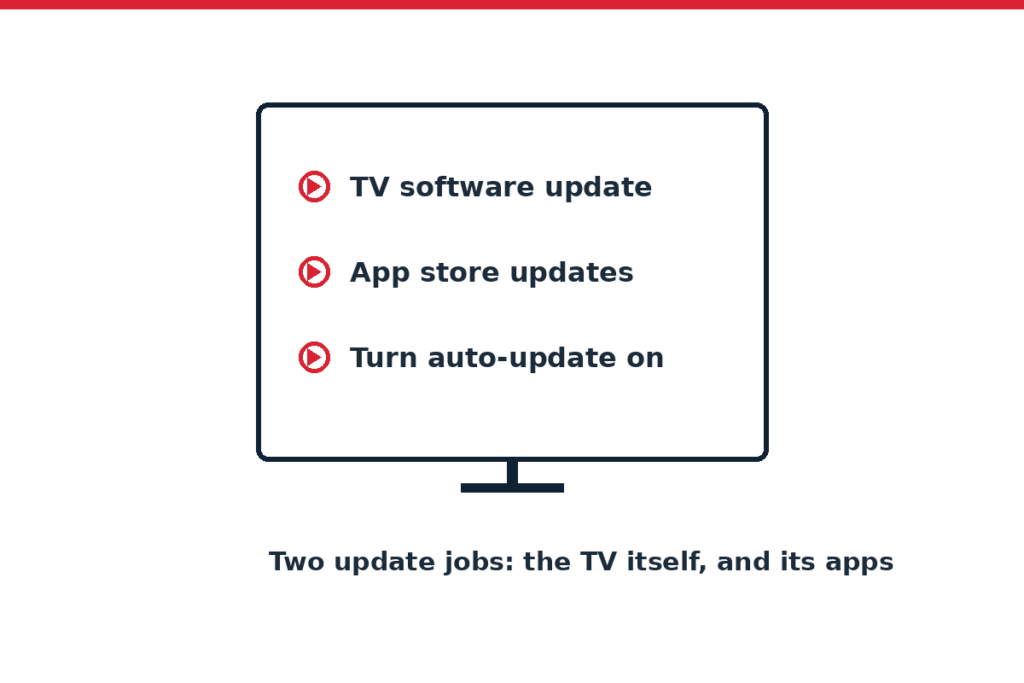
The two kinds of updates (they are not the same)
- TV software (system/firmware) updates come from your TV’s maker. They fix bugs, patch security holes, and sometimes change how the menus look. One system update affects the whole TV.
- App updates come from each app’s maker through your TV’s app store. They fix that app’s crashes, sign-in loops, and playback faults.
An app can be current while the TV software is old, and the other way round. When something misbehaves, updating both is the full job.
First: make sure the TV is online
Updates need internet. If the TV isn’t connecting, fix that first — our guide to connecting a smart TV to Wi-Fi covers the connection steps and the fixes when it won’t join.
How to update the TV’s own software
The path varies a little by brand, but it lives in the same neighbourhood almost everywhere:
- Open Settings.
- Find Support, System, or About (brand wording differs).
- Choose Software Update / System Update.
- Select Update Now and let the TV finish. Don’t unplug it mid-update — a TV that loses power while rewriting its own software can end up in real trouble. Let it take its time; some updates look frozen for a few minutes and aren’t.
- Turn on Auto Update if the option is there, so future fixes arrive on their own.
If the TV says you’re up to date, believe it for the system side, and move on to app updates.
How to update your apps
Most smart TVs run an app store (the name on the home screen depends on your brand and platform). The routine:
- Open the app store from the home screen.
- Find My Apps, Library, or Manage Apps — your list of what’s installed.
- Look for an Update All button, or update the problem app one by one.
- Turn on auto-update in the store’s settings if offered, so you stop doing this by hand.
Then fully close the app you updated and reopen it. Some apps only apply the update on a fresh start, and a restart of the TV does that job thoroughly.
One more thing worth knowing: app stores stagger updates. Your TV may show no update today and three next week, because the app maker released gradually. If an app is broken right now and no update shows, that’s not you missing a button — check again in a couple of days, and use the delete-and-reinstall step in the meantime, since a reinstall pulls the newest version the store will give your TV anyway.
When the app store itself misbehaves
Stores glitch too. If the store won’t open, or an update stalls at the same point every time:
- Restart the TV with a real power-off: unplug for 30 seconds. A sleeping TV doesn’t clear much.
- Check the TV still shows the right date and time. Wrong clock settings quietly break store connections and sign-ins more often than you’d expect. Set the clock to automatic if it’s off.
- Free up space. TVs with nearly full storage fail updates in strange ways. Delete apps nobody opens anymore.
- If only one app is stuck, delete it and install it fresh. You’ll sign in again, but a clean install beats a patched-over broken one.
“This app is no longer supported” — the honest bit
Sooner or later, on older TVs, an app you like will stop updating. App makers drop old TV platforms as they move on, and no setting on your TV can undo that. When it happens:
- Check whether the same service offers the show another way (a different app, or its website on another device).
- A current streaming stick or box plugged into the same TV is usually the fix — the TV becomes a screen, the stick runs today’s apps. Our streaming stick setup guide shows how little work that is, and new apps on the stick get their own regular updates.
- Before buying anything, check the service’s own page in your country for what it currently supports — support lists change, and that page is the current truth.
The order to work in when an app is acting up
When one app freezes, crashes, or won’t sign you in, don’t change five things at once. Work this short order, testing the app after each step:
- Fully close and reopen the app. On many TVs that means using the app-switcher or holding the back button — your manual names the gesture for your model.
- Restart the TV with the plug, 30 seconds out. Sleeping isn’t restarting.
- Update that app in the store.
- Update the TV software.
- Delete and reinstall the app.
Most troubles die at step 2 or 3. Steps 4 and 5 are for the stubborn ones. And write down which step fixed it — the same app will likely pull the same trick in a year, and future-you will be grateful.
How often should you bother?
You don’t need to nurse this weekly. A sane rhythm:
- Let auto-updates handle both kinds if your TV offers them.
- Do a manual check every few months, or whenever an app starts acting oddly.
- After any big update, expect one re-sign-in somewhere. Annoying, normal.
And if your problem isn’t updates at all but shows stopping mid-stream, work the checks in our buffering fixes guide — old software is on that list too, but it’s one check of nine. More help lives in Smart TV Setup, Settings & Updates.
FAQ
Why did an app disappear from my TV?
Three usual reasons: an update moved it on the home screen (check the full app list), the store removed it for your TV model, or storage filled up and the TV pruned. If it’s gone from the store too, your model may have lost support — a stick is the common fix.
Do updates cost anything?
The updates themselves are free. Some are tied to services that need an account or subscription to watch, but that’s the service, not the update — check the service’s own page in your country for its current terms.
Why does updating take so long or look stuck?
TVs are slow computers, and updates arrive in stages: download, check, install, restart. Leave it plugged in and give it time. Only worry if it’s truly frozen for a very long stretch; your maker’s support page for your model says what to do in that rare case.
Will an update delete my apps or sign-ins?
Normally no — apps, settings, and sign-ins survive. Occasionally one app asks you to sign in again after a major update. Keep your passwords handy for update day and it’s a two-minute annoyance at most.
My TV has no app store updates showing, but an app still crashes.
Update the TV software as well, then delete and reinstall the cranky app. If it still crashes while everything else runs fine, the fault is likely in that app or its service tonight — check the service’s status page before resetting anything else.
How this guide was made
This guide follows the update paths published in TV makers’ own manuals and support pages, generalised across brands and written in plain words. We didn’t test every model — menu names and store layouts differ by brand and year, so where this guide gives a general path, your TV’s manual has the exact wording for yours.