
A lot of “my TV looks bad” is really “my TV is set for a shop floor, not my sofa.” TVs ship bright enough to compete under store lights, with power-saving sensors quietly dimming things at home in ways that confuse everyone. If films look murky at night or daytime sport washes out, run these simple settings before concluding the screen is poor. They cost nothing and take one remote.
One boundary up front: this guide is about settings any owner can change. If the picture has physical faults — flickering, lines, a dark half — that’s a different path, and our screen flickering checks and the TV’s warranty are the right doors.
First, the two controls everyone confuses
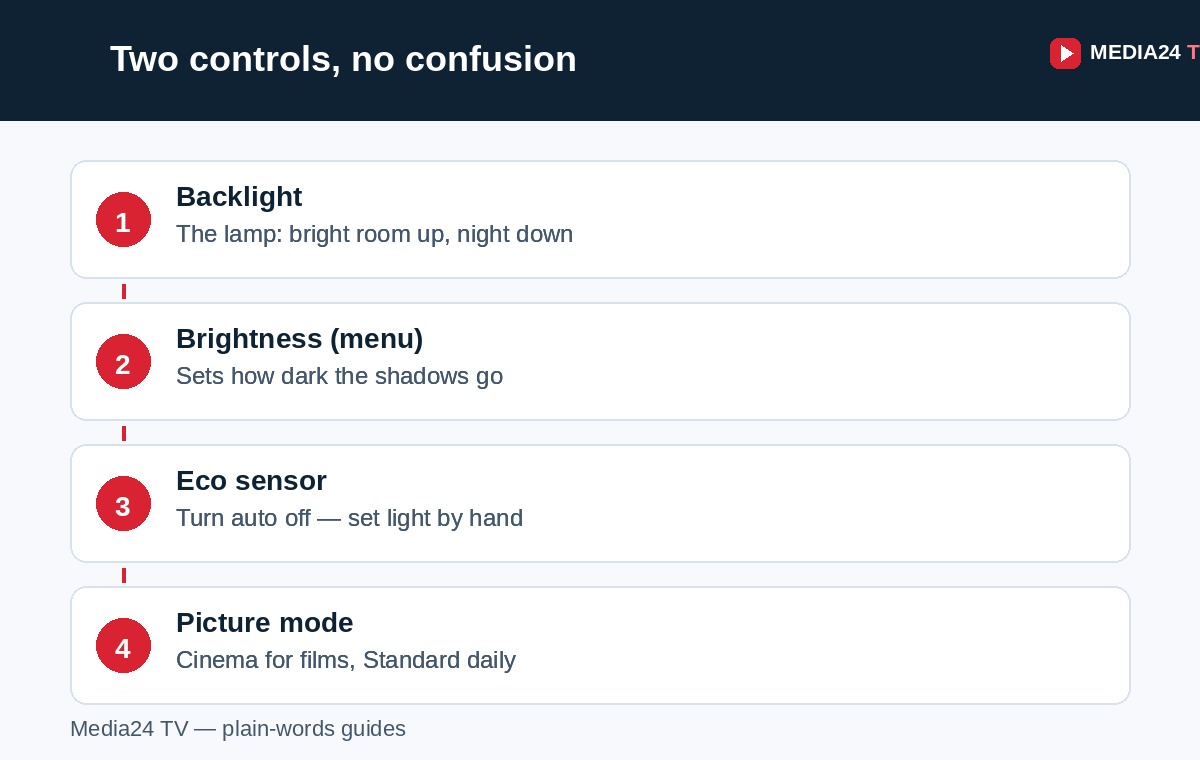
- Backlight is the lamp behind the picture. It’s the real brightness of the screen — the one to raise for a sunny room and lower for night films.
- Brightness (the menu item) actually sets how dark the darkest parts go. Turn it too high and shadows turn grey and washed; too low and night scenes swallow faces.
Rule of thumb: set the room first with Backlight, then nudge Brightness only if shadows look wrong. On many newer TVs the backlight is called Brightness in a slider list because the panel technology differs — your manual names yours; the idea (one control for overall light) is the same.
Fix 1: Turn off the eco light sensor (the sneaky one)
Many TVs watch your room with a light sensor and dim the screen to save power — then a cloud passes, or somebody switches a lamp on, and the picture breathes up and down. If your picture seems alive in the wrong way, find Eco / Energy Saving / Ambient light sensor in Settings → Picture or General and turn the automatic part off. Set your backlight by hand for day and night instead. This single switch ends a large share of “too dark” complaints.
Related keen-saver: some TVs also dim the whole picture when a scene is mostly dark (sometimes under names like dynamic contrast or black adjust). If night scenes pulse between dark and darker, turn that off too and judge the picture honestly for an evening.
Fix 2: Change the picture mode (one tap, big difference)
Picture modes are preset personalities. The common ones:
- Vivid / Dynamic: the shop-floor show-off — searing bright, colours overcooked. At home it tires eyes and buries detail.
- Standard: the middle road most TVs should live on.
- Cinema / Movie / Filmmaker: warmer, calmer, closest to how films were made. Filmmaker-type modes also switch off motion smoothing for you.
- Game: cuts processing delay for consoles; not for films.
If everything looks too bright and shouty, you’re probably on Vivid. If films look flat and dim at night, try Cinema with the backlight raised a touch. Give any mode a full evening before judging — eyes adapt, and first impressions exaggerate. And if sore, tired eyes are part of the problem, our eye strain guide covers the room-light half of the fix.
Fix 3: Motion smoothing — the “soap opera” look
Most TVs can invent in-between frames to make motion look glassy. Films then look like daytime TV dramas, which some people love and many hate without knowing why the picture feels wrong. It hides under names like motion smoothing, motion interpolation, or each brand’s own label in Picture → Advanced. For films, turn it off (Cinema/Filmmaker modes often do). For live sport, some people prefer a low setting. It’s a taste switch, not a fault — but knowing it exists ends the “why does this film look cheap?” mystery.
Fix 4: Match the settings per input (they’re separate!)
Here’s the quiet gotcha: most TVs keep picture settings per input. The antenna input, the stick’s HDMI, and the built-in apps may each carry their own mode, backlight, and eco toggles. If the stick looks great and live TV looks murky, you’re not imagining it — copy your good settings across, or look for an “apply to all inputs” option in the picture menu.
Also per-input: game consoles benefit from the TV’s game mode on that socket, which our streaming stick vs box vs smart TV guide touches on when choosing what plugs where.
Fix 5: The room is half the settings
A screen fights its room. Curtains or a lamp reflection can make any setting look washed out in daytime; a pitch-black room makes a bright screen glare at night. Small moves: shift a lamp so it doesn’t mirror in the screen, add a soft light behind the TV for evening viewing, and sit at the distance our viewing distance and height guide suggests — too close exaggerates both brightness and picture flaws.
When it’s not a setting
Settings fix taste and room problems. They don’t fix: a picture that’s dark on one side, flickering that follows no setting change, colours that have shifted oddly over months, or a screen that was fine and suddenly dulled after a knock or a move. Those are panel or backlight hardware telling a story — warranty and repair-shop territory, never open-the-back territory. Start with the flickering checks if flicker is part of it, and if sound is your actual complaint tonight, the no-sound checks are quicker wins.
More comfort help lives in Better Watching at Home.
FAQ
Why does my TV get brighter and darker on its own?
Almost always the ambient light sensor or a dynamic contrast feature reacting to your room or the scene. Turn off automatic eco brightness and dynamic contrast, set backlight by hand, and the breathing stops.
Which picture mode is “correct”?
For films, Cinema/Movie/Filmmaker modes are closest to how the picture was graded. For everyday mixed viewing, Standard is the safe home. Correct is the one your eyes like after a full evening — but start from those two, not Vivid.
Is turning the backlight to maximum bad for the TV?
It shortens backlight life a little over years and uses more power, and in most rooms it just looks harsh. You rarely need maximum outside a bright sunlit room. Comfortable beats maximum.
Why does my streaming stick look different from live TV?
Because picture settings live per input. The stick’s HDMI input has its own mode/backlight/eco settings. Copy the ones you like across, or use “apply to all inputs” if your TV offers it.
My TV is still too dark at maximum backlight. Now what?
First rule out the eco sensor still overriding you, and check you’re not judging it against bright daylight it can’t fight. If it’s genuinely dim everywhere, the backlight itself may be ageing — that’s a warranty/repair conversation, and no menu will fix hardware.
How this guide was made
These settings follow the picture menus and guidance in TV makers’ own manuals, generalised across brands and written in plain words. Control names and which modes exist differ by maker and model — your manual has the exact labels for your set. We didn’t measure your screen with instruments; this is the honest by-eye routine that fixes most living rooms.