

You don’t need a monthly bill to watch local news, weather, and the big channels. TV stations still send their signals through the air for free, and most TVs made in the last many years have a tuner built in that can pick those signals up with a simple antenna. No account. No sign-up. Just a wire, a scan, and a bit of patience with placement.
This guide walks you through the whole job in plain words: what you need, how to connect it, how to scan, and how to find the spot in your room where the antenna works best.
What you need before you start
- A TV with a built-in tuner. Almost every flat-screen TV has one. If your TV has a port on the back labeled “ANT/CABLE” or “Antenna In,” you’re good.
- An antenna. Indoor “flat” antennas that stick on a wall or window are the common starting point. If you live far from the city towers, an attic or roof antenna may pick up more, but start simple.
- The cable that comes with the antenna. Most indoor antennas include a coaxial cable (the round one that screws on). Some need power too — those plug into a USB port or a wall outlet.
That’s it. You do not need internet for over-the-air TV, and you don’t need any kind of box.
Step 1: Check which way the TV towers are
TV signals travel in straight lines, and they get weak over distance, hills, and thick walls. Before you stick the antenna anywhere, find out roughly where your local stations broadcast from and how strong the signals are at your home.
The U.S. Federal Communications Commission runs a free coverage checker where you type in your address and see which stations should reach you and from which direction: FCC DTV reception maps. Outside the U.S., search for your country’s TV coverage checker or your national broadcast regulator’s map.
Be honest with yourself about the result. If the map shows weak signals or towers 50-plus miles away over hills, a small indoor antenna may struggle, and no placement trick will fully fix that. If the map shows strong signals nearby, you have a good chance with a basic setup. Nobody can promise you a set number of channels — anyone who does is guessing with your money.
Step 2: Pick a spot for the antenna
Signals like height and windows. A good first try:
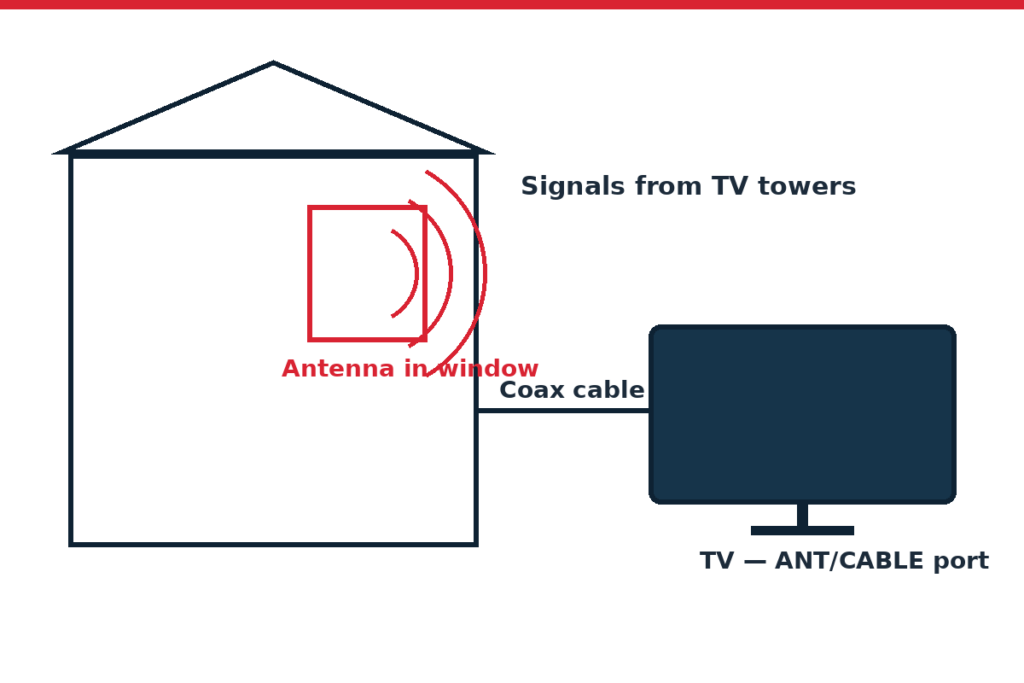
- High on the wall, or in a window that faces the direction of the towers.
- Away from big metal objects, thick brick or concrete walls, and other electronics where you can.
- Where the cable can still reach the TV without stretching tight.
Don’t fix it down with tape or pins yet. You’ll likely move it a few times during the scan tests below, and that’s normal — small moves of even a foot can change what you get.
Step 3: Connect the antenna to the TV
- Find the “ANT/CABLE” (antenna in) port on the back or side of your TV.
- Screw the antenna’s coaxial cable onto it, finger-tight. It doesn’t need tools.
- If your antenna has a power cord or a USB plug (some have a small amplifier box on the cable), plug that in. Try it with the amplifier on first.
- Put the antenna in your chosen spot, loosely.
If you also want streaming on this TV, that’s a separate job — an antenna only brings in broadcast channels. Our guide to setting up a streaming stick on any TV covers that side, and plenty of people run both.
Step 4: Run a channel scan
Every TV brand names this slightly differently, but the path is close to this:
- Press the Home or Menu button on your remote.
- Go to Settings, then look for Channels, Broadcasting, or Tuner setup.
- Choose “Auto Program,” “Auto Tuning,” or “Channel Scan.”
- When it asks for a source, pick Air or Antenna (not Cable).
- Let the scan finish. It can take a few minutes. Don’t cancel early.
If you pick “Cable” by mistake, the TV looks for the wrong kind of signal and finds little or nothing. It happens to everyone once.
If the scan finds nothing
Run through this short list before you worry:
- Is the coax cable screwed on at both ends (antenna side too, if it can come off)?
- Did you choose Air/Antenna as the source?
- Is the antenna powered, if it came with a plug?
- Is the TV input set to “TV” when you try to watch?
Still nothing? Move the antenna to a different wall or window and scan again. Each move needs a fresh scan — the TV doesn’t update the channel list on its own.
Step 5: Fine-tune the placement
Once some channels come in, write down how many you have. Then try two or three other spots: higher, lower, a different window, turned at an angle. Scan after each move and note the count. Keep the spot with the most channels you actually care about, not just the highest number — five channels you’ll watch beats fifteen you’ll never open.
A few honest tips:
- One weak channel acting up on a rainy or windy day is normal. Signals wobble.
- Walls with metal, mirrors, and big appliances between the antenna and the towers can block signal.
- If a channel you want is missing but the rest are fine, the antenna may need to point more toward that station’s tower. The FCC map shows direction, so use it.
When evenings are your main watch time, do one final check at night, because some channels behave differently after dark.
Step 6: Know what you should get — and what you won’t
With local broadcast TV you can usually expect the main networks in your area, local news and weather, and a bunch of extra “sub-channels” (old shows, movies, kids’ programs) that stations squeeze in. Picture quality on the main channels is often excellent because the signal isn’t squeezed down the way cable sometimes is.
What an antenna will not get you: cable-only channels, sports packages, or streaming shows. That’s a different pot. If you want free streaming too, see our roundup of free and legal streaming apps — the two work well together.
And if your streamed shows stutter even with good internet, that problem lives elsewhere — these buffering checks sort most of them.
Once the channels are flowing, it’s worth checking how far you sit from the screen and where it sits in the room — our TV viewing distance and height guide keeps it simple. You can browse all our antenna guides in the TV Antennas & Free Over-the-Air TV section.
FAQ
How many channels will I get with an antenna?
It depends on where you live, how far the towers are, and what’s in the way. City homes often get dozens; far-out rural homes may get only a few, or none a small antenna can catch. Check the FCC coverage map for your address before you buy anything, and treat any exact number anyone promises you with suspicion.
Do I need internet for an antenna to work?
No. Broadcast TV comes through the air, not through your router. You only need internet for streaming apps.
Why did I lose a channel I had last week?
Weather, a moved antenna, season changes, or the station adjusting its signal can all do it. First run a fresh channel scan — that fixes it surprisingly often. If one channel stays weak, try the antenna a foot or two higher.
Will an amplifier always help?
No. If your signals are already strong, an amplifier can overload them and make things worse. Try both ways: scan with it plugged in, then with it unplugged, and keep the better result.
Can I record shows from an antenna?
Yes, with a separate over-the-air DVR box made for that job — it’s optional extra hardware, not part of the antenna setup. Check the maker’s page for what each model does in your country before buying.
How this guide was made
This guide follows the setup steps in TV makers’ own manuals and help pages, plus the FCC’s public guidance on digital TV reception. We didn’t run lab tests and we don’t claim any product picks up a set number of channels — reception depends on your distance from the towers, your terrain, and your home, and it changes from house to house. Always check your address on a coverage map before spending money.