

The spinning circle always arrives at the worst line of dialogue. A film runs fine for twenty minutes, then stops. Starts. Stops again. It feels like the TV is broken, but most buffering comes down to a short list of ordinary causes — and most of them you can fix in one evening, free.
Work through these nine checks in order. Stop when your show plays clean; you may not need the later ones.
What buffering actually is
Streaming doesn’t send the whole film at once. Your TV keeps a small stock of video ahead of what you’re watching, and buffering is what happens when that stock runs out because new video arrives too slowly. So the real question is always: what’s slowing the delivery, or what’s stealing the speed? The checks below hunt exactly that.
Check 1: Restart everything (yes, really)
It sounds like a joke answer, but a restart clears the stuck states that build up in TVs, sticks, and routers left running for months. Unplug the TV (or streaming stick) and the router. Wait 30 seconds. Plug the router back in first, give it a few minutes to fully wake, then the TV. Test a show for ten minutes.
Huge share of “it’s broken” evenings end right here. If your stick is new to the TV, our streaming stick setup guide has the power detail people miss (wall plug, not the TV’s USB port) — weak power causes odd stops that look exactly like buffering.
Check 2: Look at your Wi-Fi strength where the TV sits
Wi-Fi gets weaker with every wall, and it hates brick, concrete, metal, water tanks, and fish tanks (nobody believes the fish tank; it’s true). Stand by the TV with your phone on the same Wi-Fi and run a speed test, or just open the TV’s network settings — many show signal strength for the connected network.
- One or two bars at the TV? The signal is the problem. Everything below is about fixing that.
- Full strength but still stalling? Skip ahead to Checks 5–7.
Check 3: Move the router or the signal path
You don’t always need new gear. Try, in order:
- Raise the router off the floor and out of cupboards. Routers hate cupboards.
- Move it closer to the middle of the home if the TV is far off to one side.
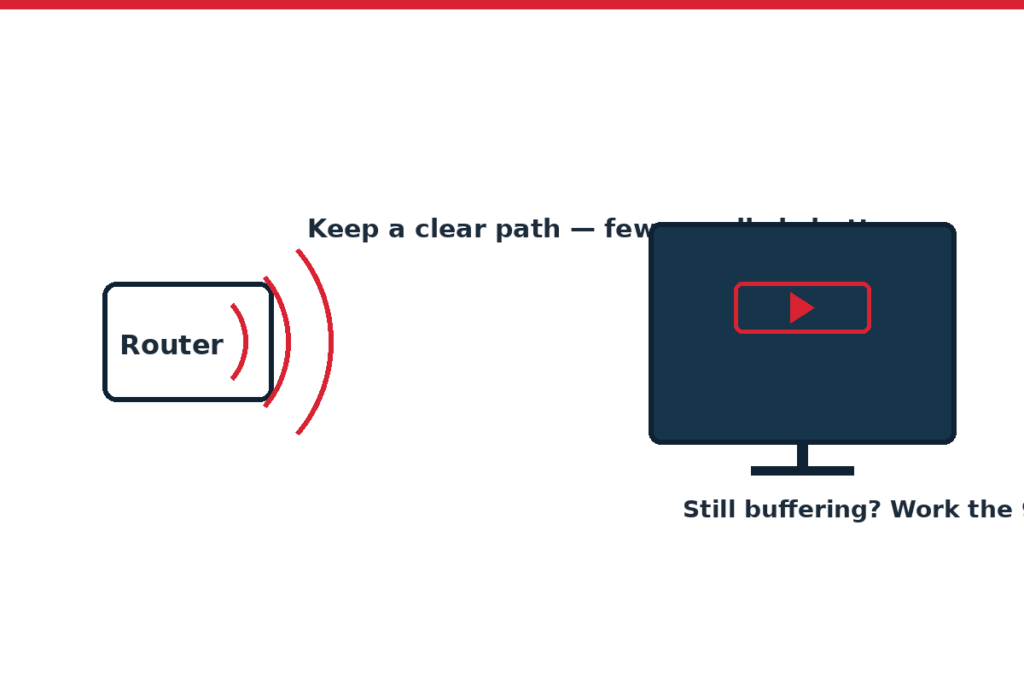
- Clear the line: big metal objects and the fridge between router and TV genuinely matter.
- If your router offers 2.4 GHz and 5 GHz networks: 5 GHz is faster but fades through walls quicker. A far TV often does better on the “slower” 2.4 GHz. Try both and keep the winner for a full evening’s test.
Check 4: Use a wire if you can
If the router sits anywhere near the TV, an ethernet cable ends the Wi-Fi question completely. TVs and many sticks (some need a small adapter) can plug straight in. Even a weekend test with a cable draped across the room tells you the truth: if buffering vanishes on a wire, your problem is Wi-Fi, full stop, and you can plan the fix calmly instead of buying random gear.
Check 5: Who else is eating the internet?
Your connection is a shared pie. Backups uploading, game downloads, cloud photo sync, a houseful of phones, and someone else’s 4K stream all take slices — often at exactly TV time. If buffering hits mainly in the evening, this is high on the suspect list.
Test it: pause downloads and backups for one evening and watch. And run a speed test at a buffering moment, not just at a good moment — the difference between the two tells the story.
Check 6: Lower the stream quality one notch
If your app or TV lets you pick quality (Auto / High / Medium in settings, or per-app playback settings), drop one step down. On most screens, “good HD” vs “top HD” is hard to see from the sofa, and the lower step sips bandwidth instead of gulping it. If a lower quality plays perfectly, your connection is borderline rather than broken — still annoying, but now you know.
Check 7: Update the TV, stick, and the app
Old software buffers more. Check for:
- TV or stick system update (Settings → Support/System → Software Update).
- The app’s own update in the app store.
- After updating, fully close and reopen the app — or restart the device — so the update takes hold.
If your smart TV is still on factory settings, this is a good moment to do the ten-minute tidy in our smart TV setup for beginners guide.
Check 8: Is it every app, or just one?
Play the same kind of show in two different apps (for example, something on a free app — see our free and legal streaming apps guide for honest options). If only one app stumbles, the fault is that app or its service tonight: check the service’s own status page or social feed before tearing your setup apart. Services do have bad evenings; yours may be fine.
Check 9: Heat, age, and the honest hardware limit
Streaming sticks stuffed behind a hot TV in a closed cabinet can overheat and throttle. Pull the stick’s extender cable out so it hangs in open air, and keep vents clear. And sometimes the truth is that a very old TV or a first-generation stick is simply slow now — apps have grown heavier while it hasn’t. If restarts and good Wi-Fi still leave menus crawling, newer hardware is the real fix. Compare what’s current on the makers’ own pages rather than trusting any “best of” list, including ours.
Room layout matters more than people think, too — distance and furniture between you, the router, and the TV. Our viewing distance and height guide covers the room side, and the rest of the fix-it family lives at TV Problems Fixed.
When to call your internet provider
If a wired speed test straight from the router falls far short of what your plan promises, at several times of day, that’s the provider’s problem and you have the notes to prove it. Call with your test times written down. If only Wi-Fi is slow but wired is fine, the fix is in your home (router position or newer router), and the provider won’t solve it.
FAQ
Why does buffering happen at night but not in the morning?
Two usual reasons at once: your whole neighborhood is online in the evening, and your own household is too. Test with a speed check during a bad spell and pause any big downloads or backups you find running.
Will a faster internet plan fix buffering?
Only if speed is your actual limit. If your Wi-Fi signal at the TV is weak, a faster plan still arrives weak. Test with a cable first — if the wire fixes it, spend effort (or money) on the Wi-Fi side, not the plan.
Is 5 GHz always better than 2.4 GHz for TV?
No. 5 GHz is faster up close; 2.4 GHz carries better through walls and distance. For a TV far from the router, 2.4 GHz often wins the evening even though it loses the spec sheet.
My internet speed test looks great, so why does the TV still buffer?
A phone test by the router isn’t a test by the TV. Run the speed check where the TV sits, or better, on the TV itself if it has a browser or test app. Also remember one slow app has its own troubles sometimes — try a second app before concluding anything.
Does closing other apps on the TV help?
It can on older, slower TVs and sticks, where an app left running in the background still holds memory. Restarting the device achieves the same thing more thoroughly, which is why Check 1 exists.
How this guide was made
These checks follow the troubleshooting order in TV, streaming-device, and router makers’ own support pages, arranged the way the faults most often turn up in real homes. We didn’t run laboratory network tests, and no home network is identical — speeds, plans, and router features vary by provider and country, so always check your plan and your gear’s own support pages for the numbers that apply to you.